Introduction
Welcome to the world of AI-powered digital art creation! In this guide, “How to Create Animals Using Stable Diffusion: A Beginner’s Guide,” you’ll learn how to use Stable Diffusion, an advanced AI tool, to transform your creative prompts into stunning animal art. Get ready to learn!
Stable Diffusion is cutting-edge technology that allows beginners and professionals to generate lifelike animal images with ease. The key is crafting structured prompts to guide the AI accurately.
This tutorial aims to provide you with foundational knowledge to navigate Stable Diffusion. You’ll learn how to create effective prompts, and bring your animal imagery to life.
Understanding the importance of structured prompts is crucial for high-quality results. A well-structured prompt can turn a generic illustration into a masterpiece. We’ll also explore negative prompts to help the AI avoid undesired elements in your artwork.
Setting up Stable Diffusion
Before you can start turning your prompts into lifelike animal images, you need to set up Stable Diffusion on your device. This section will very briefly guide you through the process, that way you know you have everything you need to begin generating your own AI artwork.
To use Stable Diffusion, you will need:
- A computer with internet access and suitable hardware.
- Basic knowledge of operating systems and installing software.
Stable Diffusion can be run on various platforms including Windows, Mac, and Linux. You can also use cloud-based services like Krea.ai or ClipDrop if you prefer not to install anything on your own machine.
Once you have the software, extract the downloaded files to a folder on your computer, install Python if it’s not already installed, open a command prompt or terminal window in the extracted folder, and run the setup commands provided in the installation guide.
Mastering prompts for animal imagery
The power of Stable Diffusion to create vivid animal imagery lies in the art of mastering prompts. As an artist or enthusiast venturing into the realm of AI-generated art, understanding how to communicate effectively with the AI through prompts is essential.
Prompts are the instructions you give to the AI. They guide it to generate the specific images you want. They are crucial for interacting with Stable Diffusion and determining the artwork’s direction. A well-structured prompt produces an image that closely matches your vision. On the other hand, a vague or overly complex prompt can lead to unexpected and sometimes undesired outcomes.
When it comes to generating images of animals, the prompts should be clear, descriptive, and focused. Start with the subject, set the scene, include descriptors, specify the style, use weights when needed, and avoid overcomplication.
Negative prompts are just as important as the main prompts. They tell the AI what to exclude from the image. Single words work best, such as “deformed,” “blurry,” or “cartoonish.”
Prompt examples
To make the diverse array of animals come to life, it’s important to create prompts that are descriptive yet concise, and specific. Each example follows the preferred prompt structure, including positive and negative prompts.
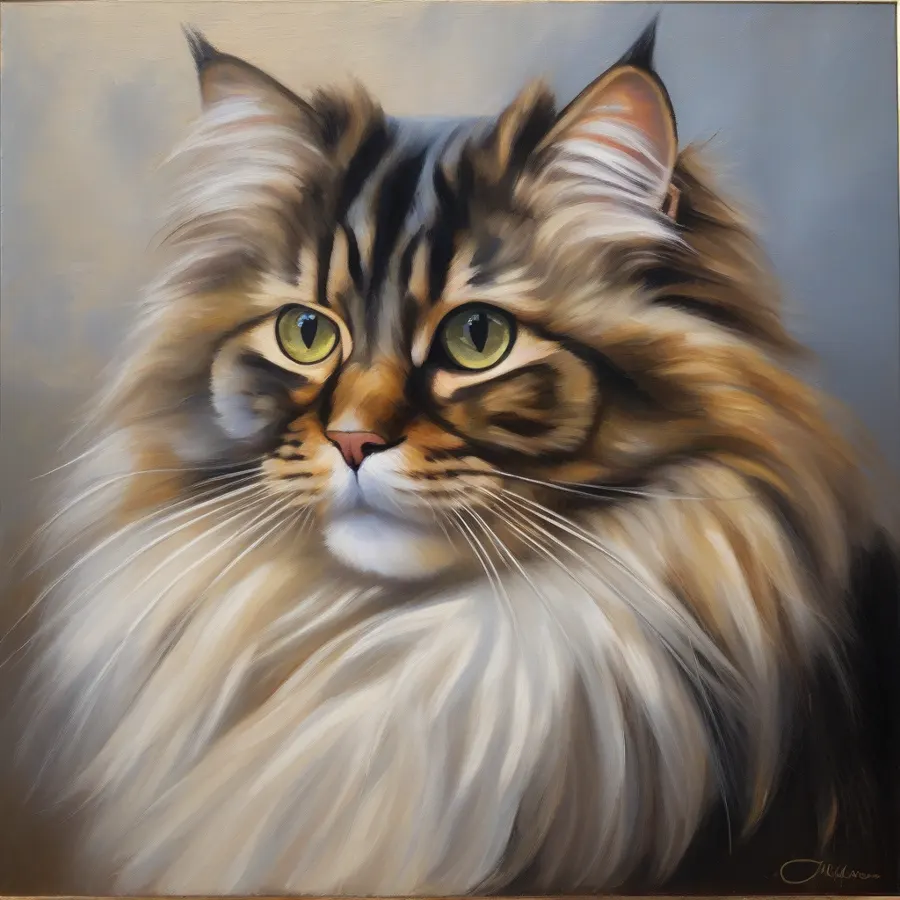
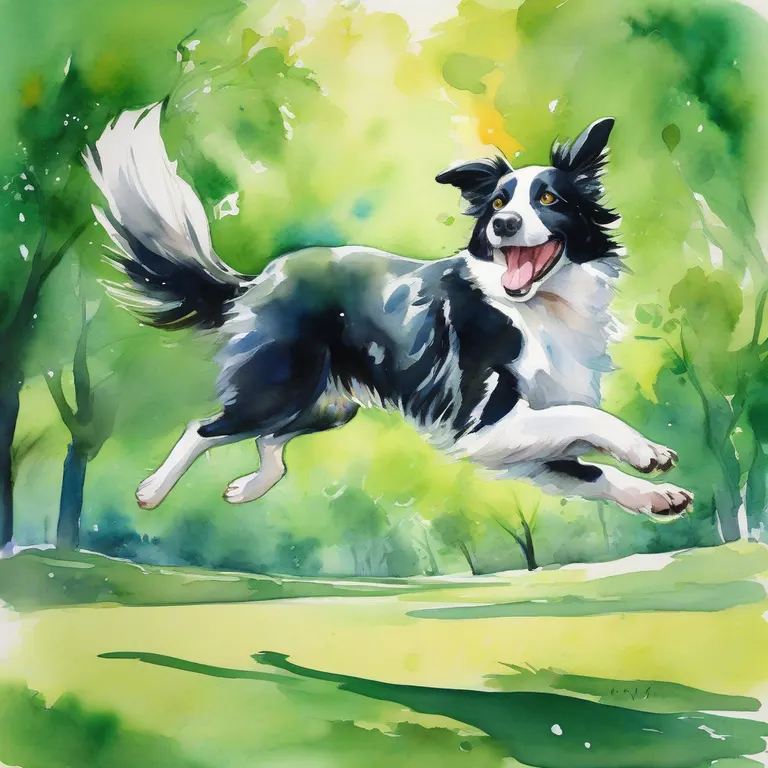
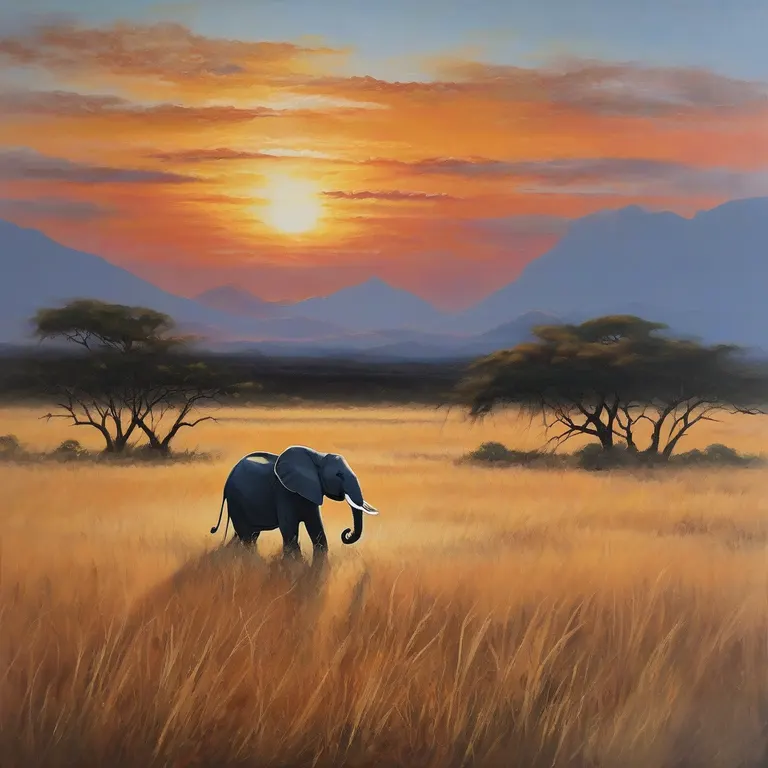
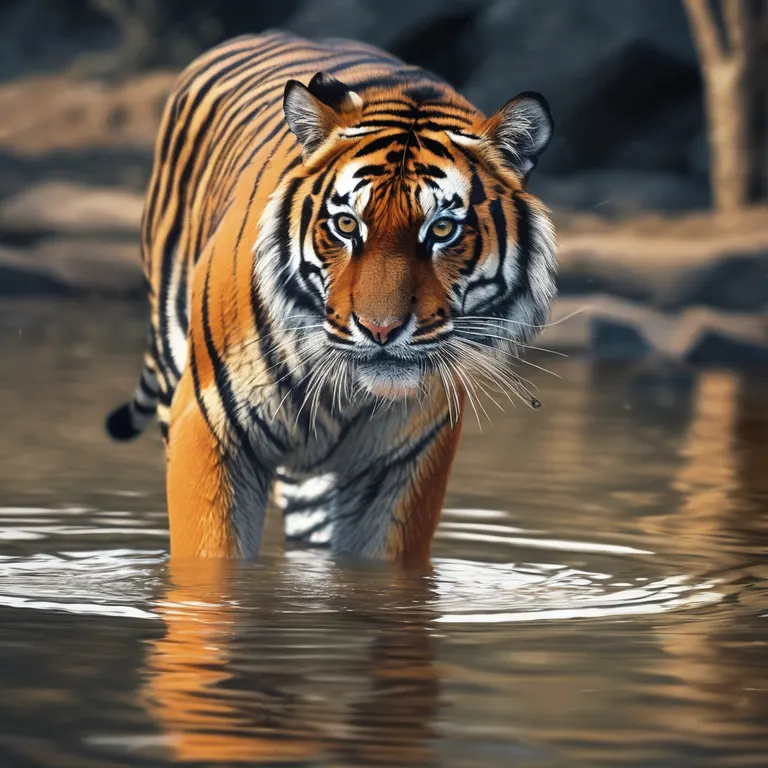
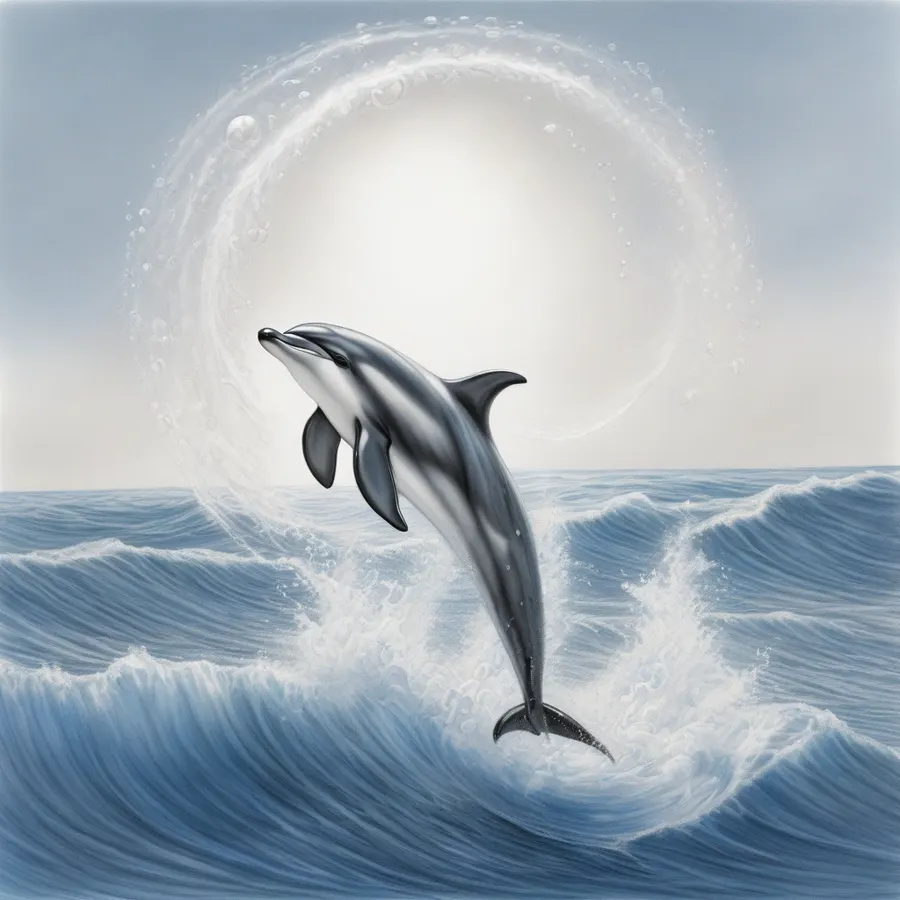
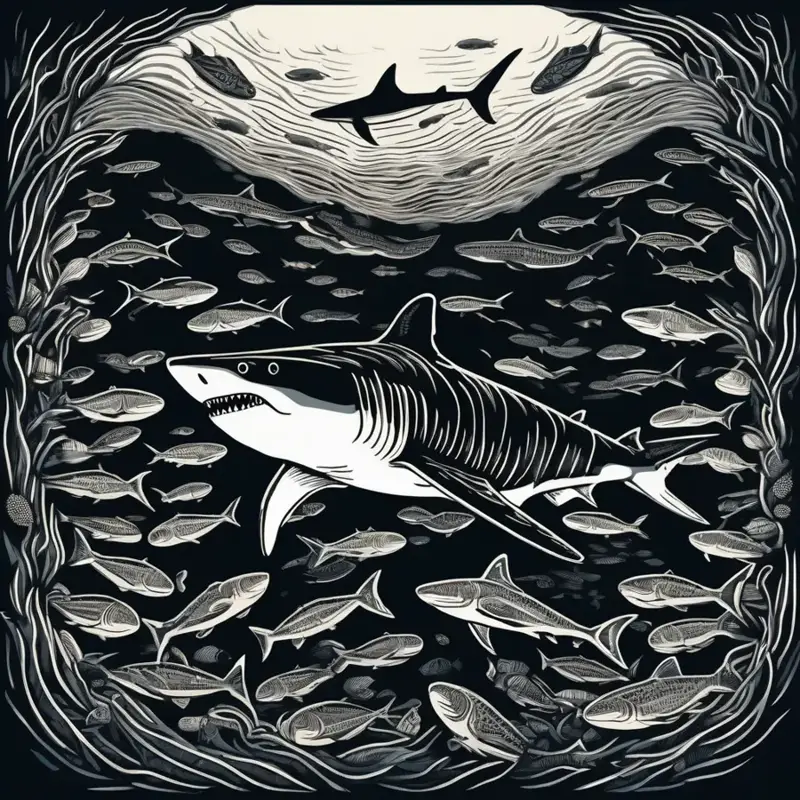
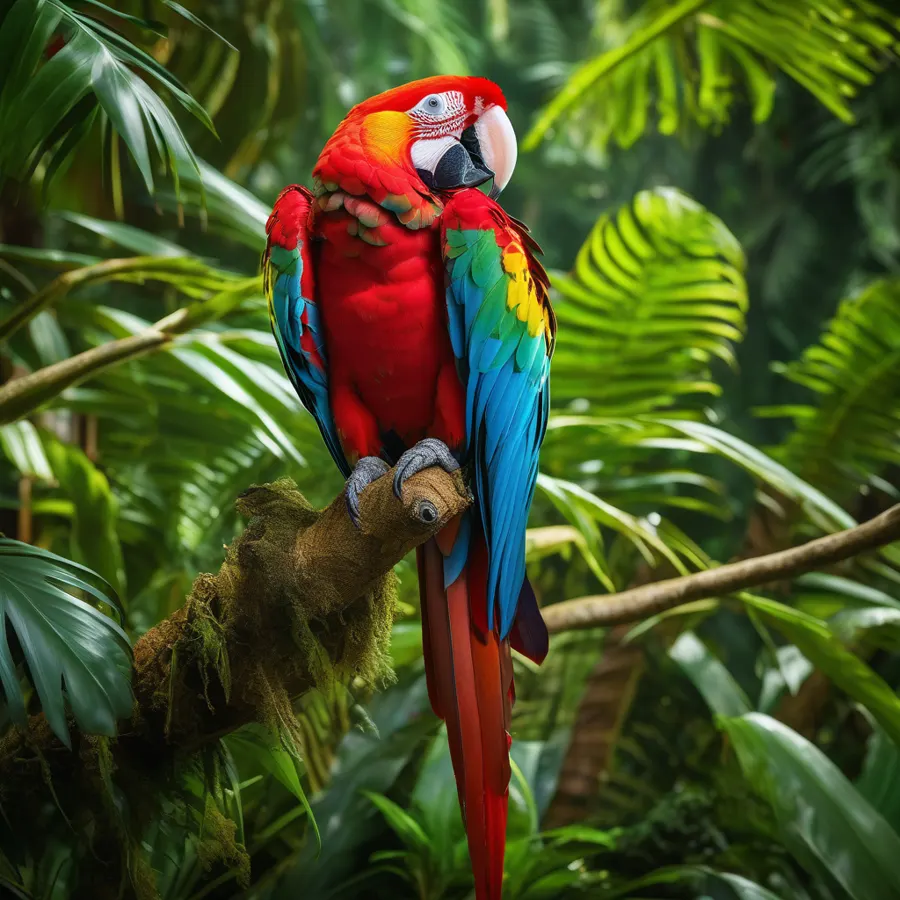
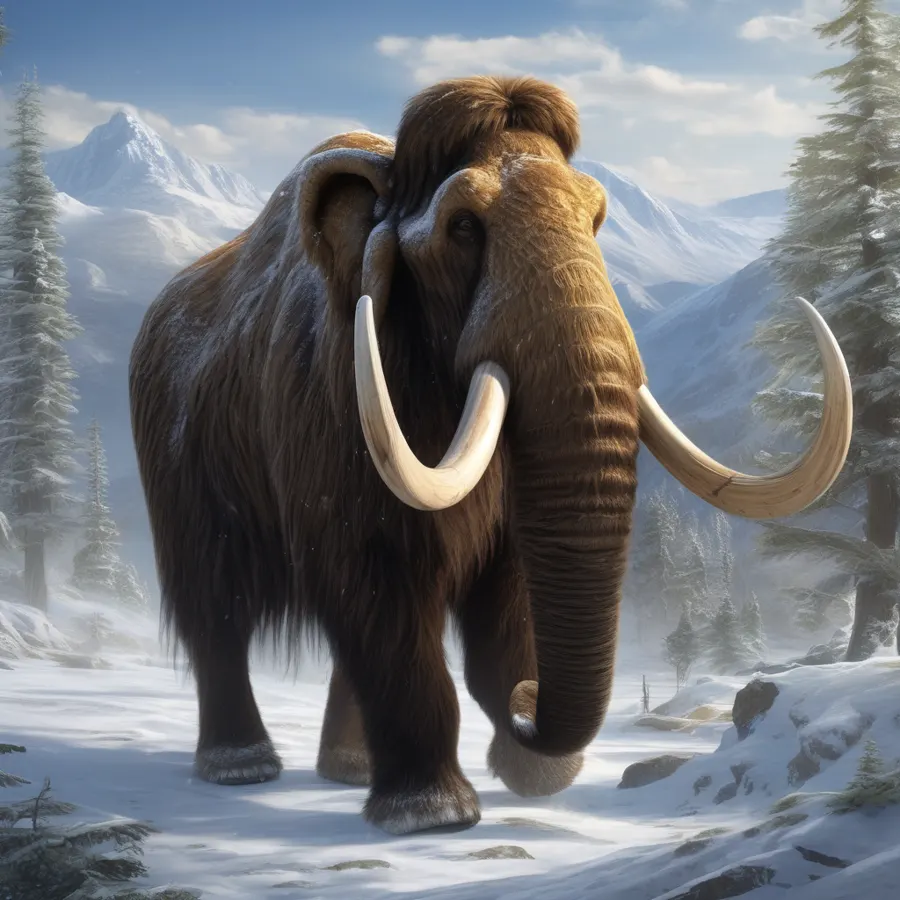
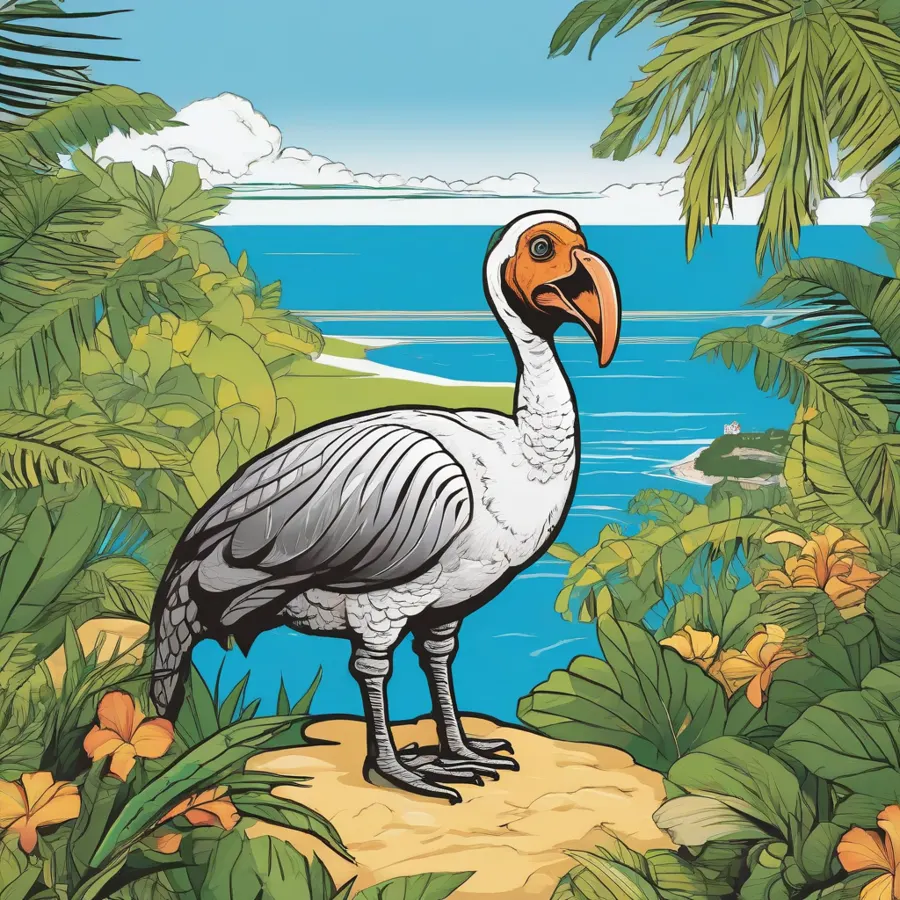
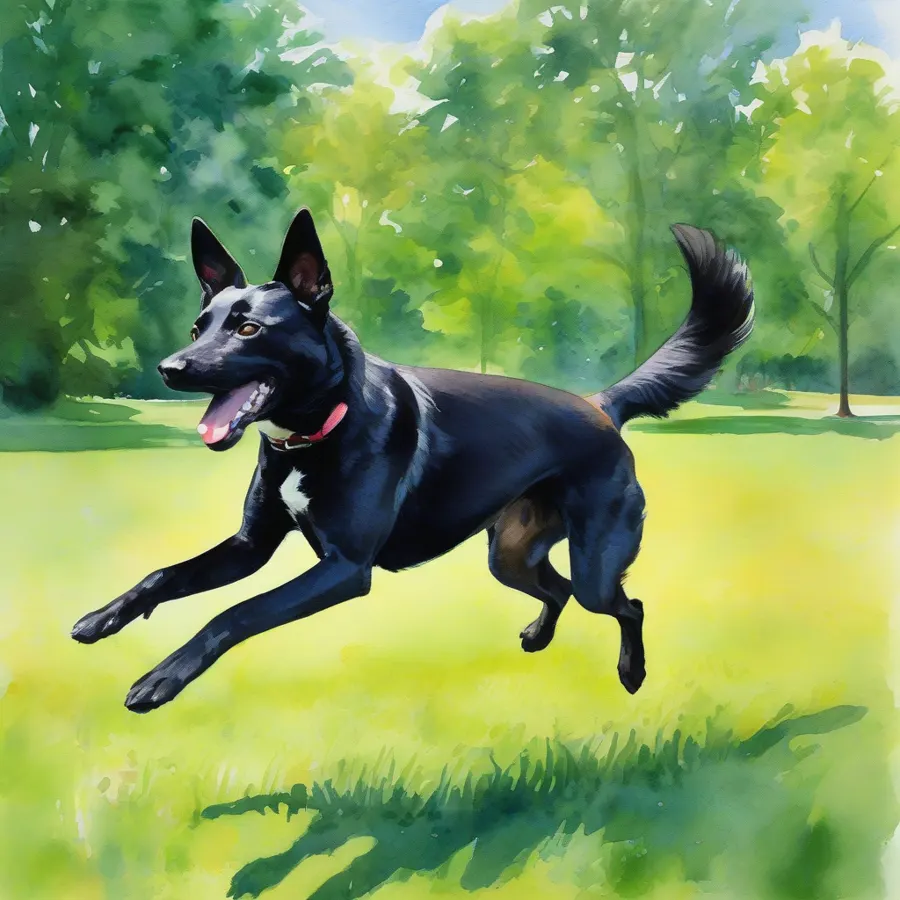
When creating these prompts, we used descriptive words and specific scenarios to guide the AI towards our vision. The negative prompts help filter out undesired traits and ensure the generated images match our intended style. Try different variations of these prompts to explore a wide range of artistic interpretations and find the style that best reflects your creative intent.
Artistic styles and models
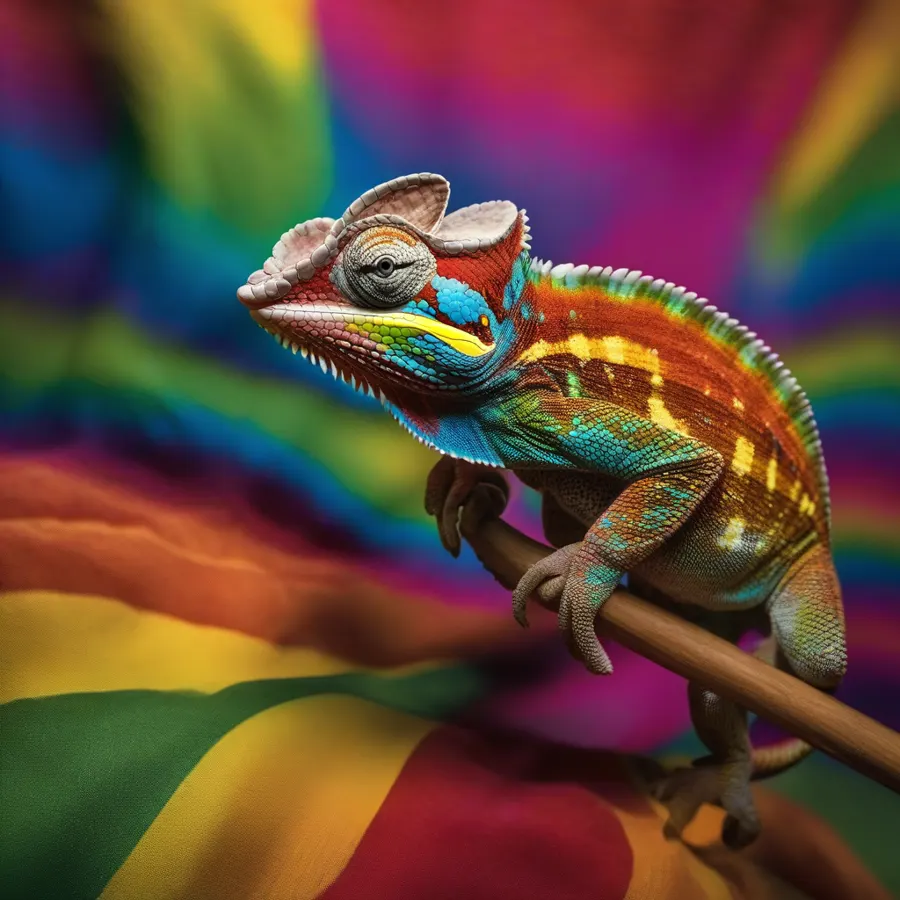
When making animal images with Stable Diffusion, it’s important to choose the right artistic style and model to achieve the desired outcome. The model you pick will affect the visual language of your image, while the artistic style sets the tone and mood.
Artistic style refers to the distinctive look and feel of an image that aligns with specific art genres or movements. You can explore realistic photography, cartoon forms, impressionism, vector art, watercolor, digital painting, and other visual languages.
The model you select serves as the foundation for your artistic creation. Realism models are ideal for lifelike wildlife or domestic animal images. Stylized models are tailored for specific artistic styles such as cartoons, impressionism, or vector art. Specialized models can help with themes such as mythical creatures or extinct animals.
Generating, refining, and inpainting
Now that you have your list of animals and know how to craft effective prompts, it’s time to generate and refine images to achieve your desired results.
- Open the Stable Diffusion interface.
- Input your prompt.
- Include negative prompts.
- Adjust settings like the model, resolution, and number of iterations.
- Generate the image.
- Review the result.
Even with a well-structured prompt, the first image you generate might not be exactly what you envisioned. Use inpainting, prompt tweaking, model fine-tuning, iteration, and post-processing to refine the creation.
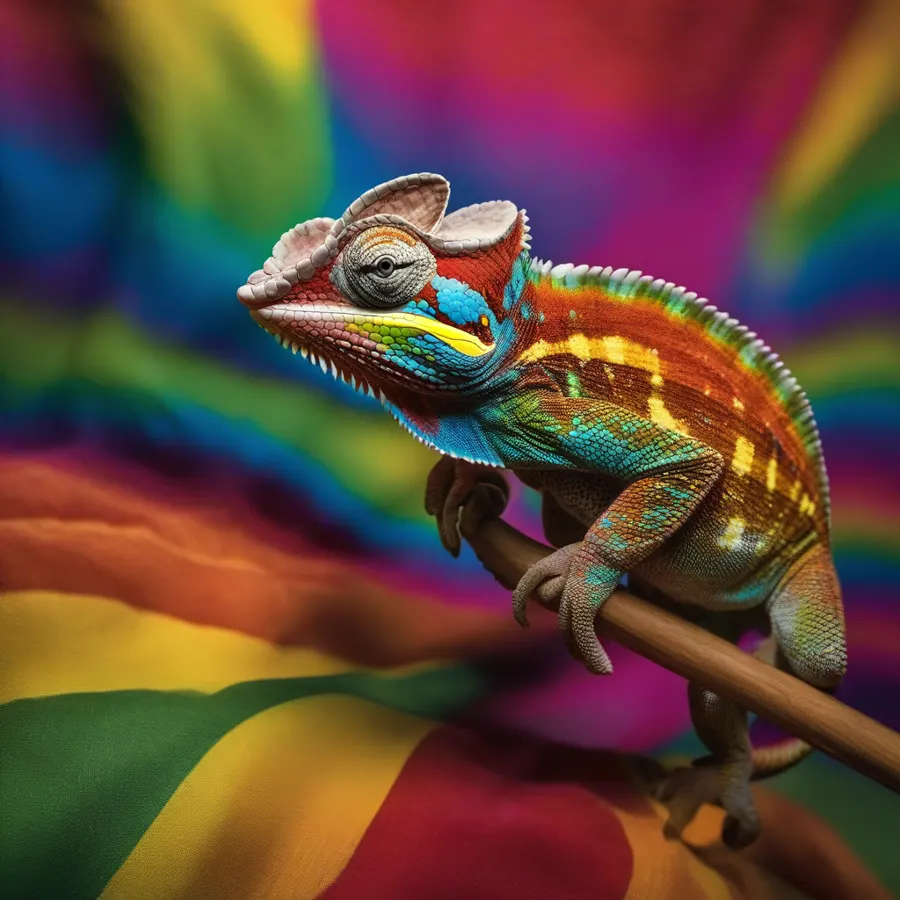
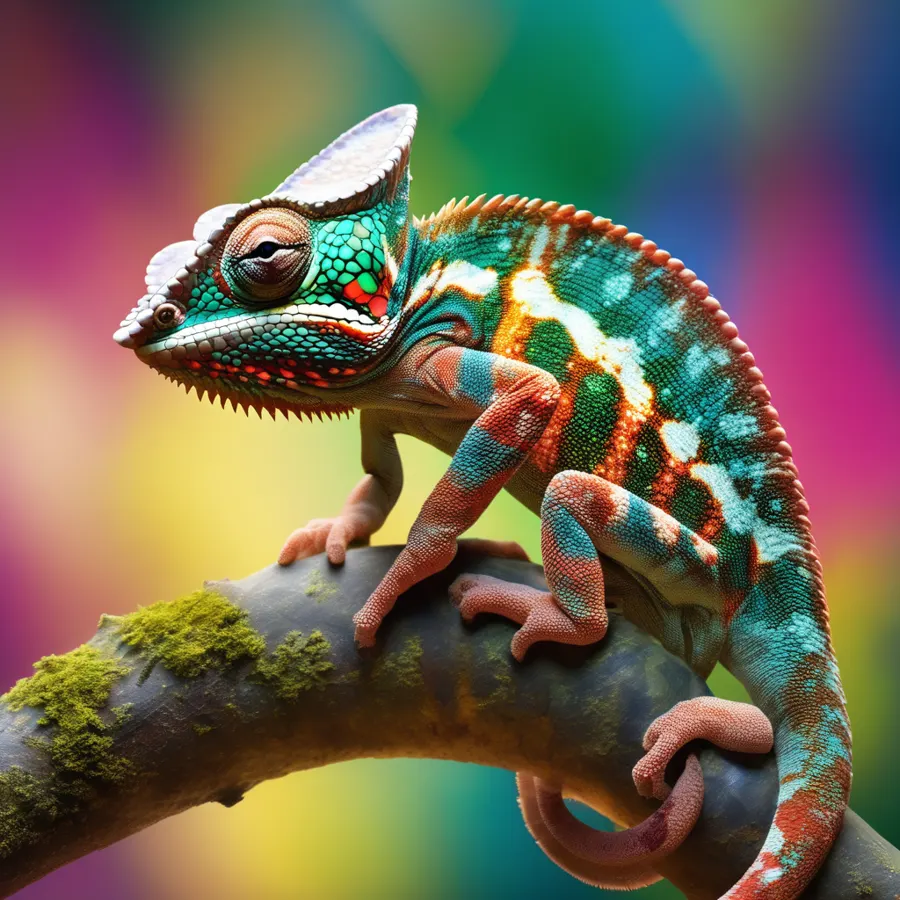
The chameleon prompt was significantly awful to structure. The prompt went through many adjustments to minimize Inpainting necessity.
Before you start inpainting, take a moment to analyze your image. Look for distorted features, inconsistent textures, and unwanted artifacts. With the inpainting brush, carefully draw around the area you wish to refine, mask with purpose, and prioritize changes.
Creating lifelike animal images with Stable Diffusion is a rewarding process. As you practice and refine your approach to prompt crafting and image generation, you’ll discover a world of creative potential. Keep experimenting, learning, and enjoying the creative journey that Stable Diffusion offers.
Related walls
From the original Artificial Lexicon site, also on Medium. Rebuilt for this site.